Saved Profiles
Save your frequent cheque details and load them with one click.
Quick Tips
- Your cheque details are now ready for printing.
- The realistic preview shows exactly where your text will print.
- **Download PDF** gives the most accurate print result.
Cheque Writer: Print Bank Cheques Online Safely (2026 Guide)
Writing cheques by hand sounds simple, until you face messy handwriting, spelling mistakes in amount words, or a cheque getting rejected because the date or payee name looks unclear. That’s exactly why many people now use a cheque writer in 2026. It helps you print clean, readable cheques in minutes without guessing spacing, alignment, or formatting.
In this guide, you’ll learn what cheque printing software actually does, what features matter (and which ones don’t), how to print cheques securely, and how to fix the #1 issue people face: alignment problems. You’ll also get practical tips for Pakistan bank formats, post-dated cheque tracking, and safe signature handling.
Table of Contents
What a Cheque Writer Is (And Why People Use It in 2026)
A check writer online free tool that helps you print cheque details neatly on your bank cheque leaf. Instead of writing by hand, you type the payee name, date, and amount, and the software prints them in the correct place.
In 2026, people use cheque printing software for one main reason: cheques still exist, but nobody wants the risks of manual writing.
A Bank check maker is useful for:
- Personal use (rent, school fees, family payments)
- Small businesses (suppliers, salaries, office expenses)
- Accounts teams (batch cheques, post-dated cheques, monthly payments)
It becomes better than manual cheque writing when:
- Your handwriting is unclear
- You write cheques often
- You manage multiple bank accounts
- You need post-dated cheque tracking
- You want fewer cheque rejections
A big bonus is speed. Once your template is set, printing a cheque becomes a 30-second job.
If you’re already using tools online for everyday work, you’ll understand the value. For example, the same way you use a converter instead of manual calculation, a cheque writer removes repetitive work. (Like this simple Length Converter Tool when you don’t want to do unit math yourself.)
Cheque writer vs manual writing: what actually changes?
The difference is not just “typing instead of writing.” The real change is control.
When you write manually, you depend on:
- Your handwriting
- Your spelling
- Your spacing
- Your ability to avoid overwriting
When you use a cheque writer, you get:
- Readable printing
- Consistent formatting
- Fewer spelling mistakes
- Better alignment (after setup)
- Cleaner cheques that look professional
Real-world example:
If you write “Twenty Five Thousand” by hand and later realize the number box says “2500” instead of “25000,” you’ve already created a rejection risk. A cheque writer prevents that mismatch by generating the words from the number.
Common mistake:
People assume cheque printing is “plug and play.” It’s not. The first time, you must do a test print and alignment check.
Cheque writer vs accounting software: not the same thing
A lot of people confuse cheque writing software with accounting software. They are not the same.
Accounting software focuses on:
- Invoices
- Ledgers
- Profit/loss
- Tax records
- Reports
A cheque writer focuses on:
- Cheque templates
- Printing alignment
- Batch cheque printing
- Preview before print
- Multi-bank formats
- Cheque logs (basic tracking)
You can think of it like this:
| Tool Type | Main Job | Best For |
|---|---|---|
| Accounting software | Manage money records | Full finance tracking |
| Cheque writer | Print cheques correctly | Cheque printing + templates |
Many businesses use both. They record payments in accounting software, then print cheques using a dedicated cheque writer because alignment and templates are much easier.
Who needs a professional cheque writing app?
You need a professional cheque writing app if you print cheques regularly and want the process to be fast and mistake-free.
It’s especially useful for:
- Small businesses paying suppliers weekly
- Offices that issue salary cheques
- People handling post-dated cheques
- Admin teams printing cheques for multiple departments
- Anyone managing multiple bank accounts
Write a check online is professional for small business becomes worth it when you’re doing repetitive cheque work and your team is wasting time rewriting the same information.
Cheque Printing Software Features That Actually Matter
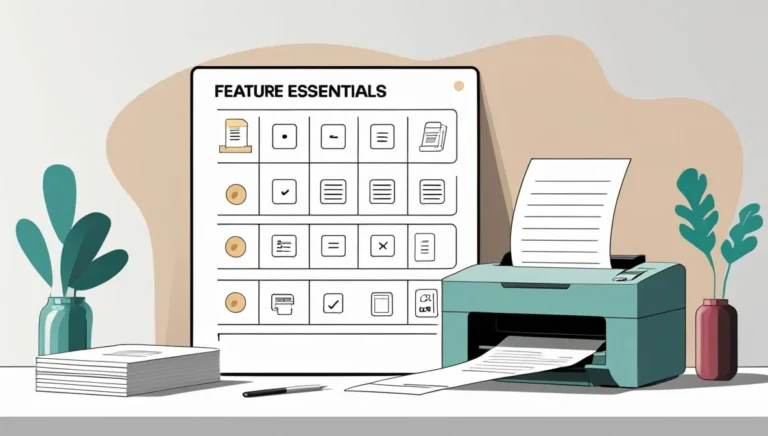
Most cheque software reviews list 20–30 features, but honestly, only a few really matter in real life.
In 2026, the best cheque writer software is the one that helps you print a cheque correctly the first time, without wasting paper.
Here are the features that truly matter:
- Cheque template and alignment editor
- Print preview
- Amount to words converter
- Batch printing
- Excel import
- Multi-bank support
- Multiple bank account profiles
- Cheque log / history
And here’s what to ignore (fluff features):
- Fancy themes or “skins”
- Animated previews
- Unnecessary invoice modules
- Overcomplicated dashboards
- Features that force you to sign up for everything
Practical tip:
Before choosing a tool, check if it allows you to adjust each field (payee, date, amount, amount words). If not, you’ll fight alignment forever.
Cheque template + cheque format alignment (must-have)
Cheque format alignment is the #1 pain point for almost everyone.
Even if your cheque writer is perfect, your cheque print can still go wrong because:
- Printer margins vary
- Banks place boxes differently
- Some cheque leaves are slightly shifted
- Printer scaling changes output
A good cheque template system must allow:
- Moving fields left/right/up/down
- Saving a template per bank
- Saving a template per printer
- Preview before printing
Real-world example:
Your payee line prints 5mm too high. That small shift can put the name inside the date box or overlap the line, and the cheque looks tampered.
A cheque design alignment software solves this by letting you fix the exact position once and reuse it.
Amount to words converter (avoid spelling mistakes)
This is one feature people underestimate until they get a cheque rejected.
Banks commonly reject cheques when:
- The number box says one amount
- The written words say a different amount
- The words are unclear or misspelled
Example mistakes:
- Writing “Forty” as “Fourty”
- Writing “One Thousand” but number box says “10000”
- Missing “Only” at the end
- Wrong comma placement causing confusion
A cheque amount to words converter prevents these problems because it generates the words directly from your number.
Practical tip:
Always recheck currency format if you work with decimals. Some tools write decimals awkwardly.
Batch cheque printing + Excel import for businesses
If you run a business, batch cheque printing is not a luxury. It’s a time saver.
Without batch printing, your workflow looks like this:
- Open cheque writer
- Type payee
- Type amount
- Repeat 20 times
With batch generate cheques from Excel:
- Prepare a list of payees + amounts
- Import
- Preview
- Print in bulk
This reduces repetitive work and also reduces mistakes, because you’re not manually typing the same supplier names again and again.
Common mistake:
People import Excel data with extra spaces. That causes payee names to print too long. Always clean your Excel sheet first.
Multi bank cheque printing + multiple bank accounts
If you use more than one bank account, you already know the pain.
Cheque templates differ because:
- Date box position changes
- Amount box spacing changes
- Payee line length changes
- Some banks have different layouts for crossing lines
Multi bank cheque printing matters because it lets you switch formats instantly without rebuilding your template from scratch.
The best tools let you:
- Save a template for each bank
- Save multiple accounts under the same bank
- Switch with one click
How to Print a Cheque Securely Online (Step-by-Step)
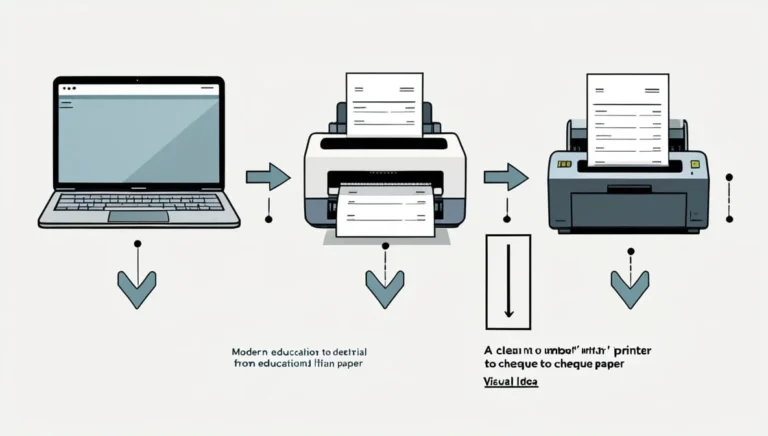
Printing cheques online can be safe if you do it properly.
The goal is simple: print only what is allowed on the cheque leaf, and keep your data protected.
Here’s a beginner-friendly step-by-step cheque printing guide:
- Open your cheque writer tool
- Select your bank template
- Enter payee name
- Enter date
- Enter amount
- Convert amount to words
- Preview the print
- Do a test print on plain paper
- Print on real cheque leaf
- Store cheque details safely
Enter payee name, date field, and amount correctly
This is where most people mess up.
Payee name tips:
- Avoid extra spaces at the start
- Keep spelling exact (match supplier name)
- If the name is long, shorten safely (without changing identity)
- Don’t let the payee name cut off at the end
Date field tips:
- Use the bank’s expected format
- Avoid mixing 02/03/2026 style confusion
- Never overwrite a printed date manually
Amount tips:
- Double-check zeros (1000 vs 10000)
- Don’t use commas incorrectly
- Keep decimals consistent
Common mistake:
People type “Rs 25,000” including the “Rs” in the amount box. Most cheque templates expect only numbers.
Print preview and test print before using real cheque paper
Never skip this.
Your first print should always be a test on plain A4 paper.
Here’s the easiest method:
- Print the cheque on A4
- Place the A4 on top of a real cheque leaf
- Hold it against light
- Check if text matches boxes
This saves you from wasting cheque leaves.
Important setting:
Make sure your printer is not using:
- “Fit to page”
- “Shrink to printable area”
- “Auto scale”
Always print at 100% scale.
Print cheque with signature insertion (safe ways)
Signature insertion is tricky.
Some cheque writing tools allow you to upload a signature image and print it. This can be convenient, but it can also be risky.
When it’s acceptable:
- You are printing cheques in a controlled office
- Your signature file is protected
- You trust the device and storage
- Your bank accepts printed signature (many don’t)
When it’s risky:
- You are using a public computer
- You are using unknown software
- You store signature images in shared folders
- Multiple staff members have access
Safe tip:
If you use a signature file, keep it in a password-protected folder and never email it around.
If you need a clean digital signature file, you can create one using a safe tool: Signature Maker
Cheque Alignment Fixes (The #1 Problem People Face)
If cheque printing feels frustrating, 90% of the time it’s alignment.
Cheque format alignment problems happen because cheques are not “standard paper.” They have pre-printed lines, boxes, and margins.
The good news: once you fix alignment once, you usually don’t need to fix it again unless you change printer settings.
Here’s what you should focus on:
- Printer scaling
- Paper size
- Margin settings
- Template field positions
- Printer driver defaults
Why cheque format alignment goes wrong (printer + margins)
Cheque alignment goes wrong due to small invisible changes.
Common causes include:
- Printer driver updates resetting margins
- Windows printing at 97% scale
- Wrong paper size selected (A4 instead of cheque size)
- Borderless printing options
- Different trays feeding slightly differently
Real-world example:
You print perfectly yesterday. Today it prints 3mm lower. Nothing changed in your template. But Windows updated your printer driver and reset the scaling.
This is why printer compatibility matters.
Using cheque design alignment software to adjust fields
A cheque design editor lets you move fields like blocks.
You should be able to adjust:
- Payee line position
- Date box position
- Amount number box
- Amount in words line
Best practice:
- Move one field at a time
- Adjust in small steps (1–2mm)
- Save template per bank
- Save template per printer model
Common mistake:
People try to fix alignment by moving everything randomly. That wastes time. Start with the date field first, then payee, then amount.
Cheque template editor: best settings for clean printing
Even the best cheque template editor fails if your print settings are wrong.
Use these settings:
- Scale: 100%
- Paper size: actual cheque size (or custom)
- No fit-to-page
- No borderless printing
- High quality mode (for inkjet)
- Normal mode (for laser)
Practical tip:
Save a dedicated “Cheque Printing” preset in your printer settings. This avoids accidental changes.
Printer Compatibility (HP Laser Printers, Inkjet, and More)
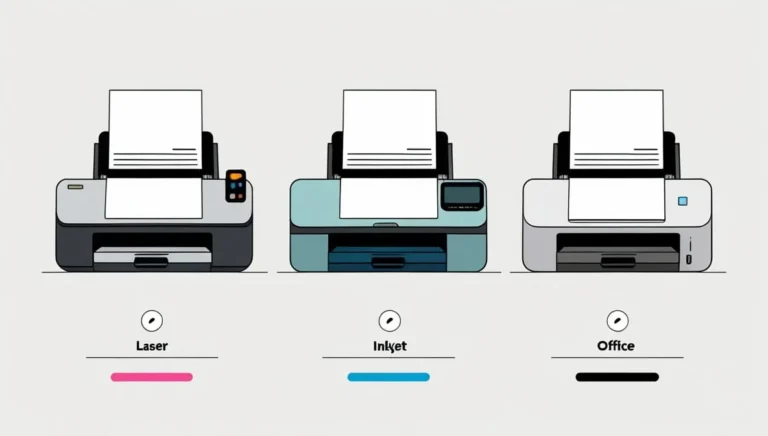
A very common question is: “Will cheque printing work on my printer?”
Most cheque writers work with most printers, but results depend on:
- Printer type (laser vs inkjet)
- Paper feed mechanism
- Driver scaling options
- Smudge resistance
Cheque printer compatibility is usually best with:
- HP Laser printers
- Brother laser printers
- Canon office printers
- Any printer with manual tray feed
Inkjet works too, but it needs more care because of smudging.
Which cheque writer works with HP laser printers?
Most cheque writing tools work fine with HP laser printers because laser printing is:
- Sharp
- Smudge-free
- Fast
- Consistent
What matters more is your HP driver settings.
Use:
- Actual size / 100% scale
- Manual feed if possible
- Disable “enhanced scaling”
- Set paper type to plain
Paper feed tip:
If your printer has a manual tray, use it. It reduces skewing.
Best settings for cheque paper feeding and smudge-free printing
If you want clean printing, your printer settings matter as much as your template.
For inkjet printers:
- Choose “Plain paper” or “Matte paper”
- Wait 10–15 seconds before touching
- Don’t stack cheques immediately
For laser printers:
- Normal print quality is enough
- Avoid “toner save” mode (it may look faint)
Common mistake:
People touch the cheque immediately after inkjet printing. The amount smudges, and the cheque looks altered.
Windows vs Mac support (what platforms to check)
Not all cheque writing tools work equally on every platform.
Here’s the real situation:
- Many cheque writer tools are Windows-first
- Mac support is often limited
- Cloud tools work on both, but depend on browser printing
If you’re on Mac, check:
- Whether the tool supports Safari/Chrome
- Whether it allows 100% scaling
- Whether print preview matches final print
Practical tip:
If you’re serious about cheque printing for business, Windows desktop tools usually give more control.
Security: How Cheque Writing Software Helps Reduce Fraud
Cheque fraud is real, but you don’t need fear. You need good habits.
Cheque writing software helps reduce fraud mainly by improving clarity and control.
Instead of handwriting that can be altered, printed text is:
- Harder to modify cleanly
- More consistent
- Easier to verify
Also, many cheque tools keep logs, which helps in disputes.
How software reduces cheque fraud compared to manual writing
Manual cheques are vulnerable because:
- Handwriting can be manipulated
- Numbers can be altered with a pen
- Payee names can be edited
- Overwriting looks suspicious
Software reduces risk by:
- Printing clean text with consistent spacing
- Reducing overwriting
- Preventing spelling mistakes
- Keeping a record of issued cheques
Real-world example:
A handwritten “1” can be turned into “7.” Printed numbers are much harder to change without visible tampering.
MICR encoding explained (and when you actually need it)
MICR encoding is the magnetic ink line at the bottom of cheques.
It usually includes:
- Bank routing details
- Account-related codes
- Cheque number
Most people do not need MICR printing.
You need MICR encoding only if:
- You are printing cheques from blank paper (not recommended)
- Your bank specifically requires MICR printing
- You are using special cheque paper
For normal users printing on original bank cheque leaves, MICR is already pre-printed and should stay untouched.
If you want to understand MICR basics, Wikipedia has a simple explanation (no fluff):
Cheque database management + tracking issued cheques
This feature is underrated, especially for businesses.
Cheque database management means your software stores:
- Payee name
- Date
- Amount
- Cheque number (optional)
- Bank account profile
- Status (issued, cleared, cancelled)
This helps when:
- A supplier claims you didn’t pay
- You need proof of issued cheque
- You want to track post-dated cheques
Practical tip:
If your tool doesn’t have built-in tracking, export to Excel monthly.
If you need a quick way to clean data before exporting, even a simple Word Counter Tool helps when checking formatting or removing extra spaces.
Post-Dated Cheques: Reminders, Tracking, and Automation
Post-dated cheques are extremely common in Pakistan, especially for:
- Rent
- School fees
- Supplier payments
- Installments
- Business agreements
The biggest problem with post-dated cheques is not writing them.
It’s forgetting them.
Cheque payments automation doesn’t mean “bank automation.” It means your own system that prevents missed deposit dates.
How cheque printing software handles post-dated cheques
A good cheque writer helps with post-dated cheques by:
- Tagging cheques as post-dated
- Sorting by deposit date
- Saving cheque history
- Printing consistent format for each month
Some tools allow scheduling or reminders, but even without that, a saved log is enough to track.
Common mistake:
People write 12 post-dated cheques and forget which month they belong to. Then they panic when the bank calls.
Cheque book automation for monthly payments
Cheque book automation is perfect for repeated payments like:
- Monthly rent
- Office electricity bills
- Supplier retainers
- Installment payments
The workflow becomes:
- Save payee once
- Save amount once
- Print every month with updated date
- Keep a log
This is where cheque writing automation saves time.
Real-world example:
If you print 10 rent cheques for 10 branches, doing it manually takes an hour. Batch printing can do it in minutes.
Simple tracking system for issued cheques (even without accounting)
Even if you don’t use accounting software, you still need a tracking system.
Here are two simple options:
Option 1: Built-in cheque log
Best if your cheque writer provides it.
Option 2: Excel tracking
Keep columns like:
- Cheque number
- Payee
- Amount
- Date
- Bank account
- Status (Issued/Cleared)
Practical tip:
Export your cheque list once per month and store it in a safe folder.
If you want a simple way to calculate payment schedules, tools like the Loan EMI Calculator can help when you’re planning installment cheques.
Free Cheque Writer vs Paid Tools (What You Really Get)
People love free tools. And honestly, for basic use, a free cheque writer can be enough.
But the real difference between free vs paid cheque printing tools is:
- Control
- Templates
- Support
- Data safety
- Batch features
Here’s a simple comparison:
| Feature | Free Tool | Paid Tool |
|---|---|---|
| Basic printing | Yes | Yes |
| Template saving | Limited | Strong |
| Alignment editor | Sometimes | Usually better |
| Excel import | Rare | Common |
| Batch printing | Limited | Yes |
| Support | No | Yes |
| Security controls | Basic | Better |
Is there a free online cheque printing tool?
Yes, there are free online cheque printing tools, and they’re useful for:
- One-time cheque printing
- Personal cheques
- Testing layouts
Browser-based tools are convenient because:
- No installation
- Works on most devices
- Quick access
But the downside is privacy and storage.
Privacy tip:
Avoid using a free tool that asks you to upload bank details or store payee lists online without clear privacy controls.
Free cheque writer download: what to check before installing
Free downloads can be risky.
Before installing a free cheque writer download, check:
- Does it ask for unnecessary permissions?
- Does it bundle extra software?
- Does it require admin access?
- Is it from a trusted publisher?
- Does it store your data locally or online?
Common mistake:
People install random cheque software and later their system becomes slow or infected. This is why browser-based tools are safer for many users.
Best cheque writer software: what makes it “best”?
“Best” is not about popularity. It’s about reliability.
The best cheque writer software has:
- Accurate templates
- Easy alignment adjustment
- Print preview
- Batch printing
- Excel import
- Multi-bank profiles
- Simple tracking log
- Clear printing at 100% scale
Practical tip:
A tool is only “best” if it saves you time and prevents cheque rejection. Fancy features don’t matter if alignment fails.
Mobile Options: Android Cheque Writer App + iPad Tools
Mobile cheque writer intent is growing because people want convenience.
But here’s the truth:
Mobile apps are great for:
- Drafting cheques
- Saving payee details
- Preparing cheque data
Mobile apps are not always great for:
- Accurate printing alignment
- Batch printing
- Template editing
Because printing still needs a printer, and printers are mostly office devices.
Are there free cheque writer apps for Android?
Yes, there are free cheque writer apps for Android.
But most of them are limited to:
- Creating cheque drafts
- Storing payee info
- Generating amount words
- Exporting details
They often struggle with:
- Bank-specific template alignment
- Printer scaling
- Multi-bank formats
Practical tip:
Use Android apps for preparing cheques, then print from desktop for better control.
iPad cheque writer and printer app review: who it suits
An iPad cheque writer setup can work well if you have:
- A modern printer with AirPrint
- A stable office Wi-Fi
- Simple cheque layouts
It suits:
- Small offices
- Admin desks
- Business owners who travel
But template flexibility is often limited compared to Windows tools.
When a mobile cheque writer is NOT enough
A mobile cheque writer is not enough when you need:
- Batch cheque printing
- Excel import
- Multiple bank templates
- Precise field-level alignment
- Team-based cheque printing workflow
If you’re running a business, desktop printing is still the most reliable option.
Cheque Writer for Pakistan Banks (Formats, Templates, Practical Tips)
Pakistan has strong cheque usage, especially for post-dated payments and business dealings.
But Pakistan bank cheque formats vary more than people expect.
This is why cheque writer for Pakistan banks needs:
- Flexible templates
- Easy alignment adjustments
- Saved profiles per bank
You don’t need to name every bank. You just need to handle format differences properly.
Common cheque format differences in Pakistan (why alignment matters)
Common differences include:
- Date box position (left vs right)
- Amount box spacing
- Payee line length
- “A/C Payee” crossing area placement
- Amount words line height
Even small differences can break printing.
Real-world example:
One bank’s date box is slightly lower. If your template is made for another bank, the date prints outside the box and looks suspicious.
Printable cheque template generator for Pakistan banks
A printable cheque template generator should let you:
- Select bank format (or start from blank)
- Place payee, date, amount fields
- Save template with bank name
- Print a test on A4
- Adjust alignment
- Save final version
Practical tip:
Save templates with clear names like:
- “Bank A – Laser Printer”
- “Bank A – Inkjet Printer”
Because different printers print slightly differently.
Cross cheque printing options (A/C Payee) explained
Cheque crossing is when you draw two parallel lines (often with “A/C Payee”) on the cheque.
It means:
- The cheque cannot be cashed directly
- It must be deposited into a bank account
- It reduces misuse if stolen
Cross cheque printing options are useful for:
- Supplier payments
- Salary cheques
- Business cheques
Safety tip:
Use crossing for high-value cheques. It adds a layer of protection.
Common Cheque Writing Mistakes (And How Software Fixes Them)
This section is important because most cheque problems are not “bank issues.”
They are formatting issues.
Cheque writing mistakes often cause:
- Cheque rejection
- Delayed payment
- Awkward calls from the bank
- Business trust issues
Software fixes most of these mistakes by forcing clean formatting and reducing human error.
Amount words vs number mismatch (most common issue)
This is the #1 mistake.
Example:
- Number box: 50,000
- Words line: “Five Thousand Only”
This can happen because of:
- Missed zero
- Rushed writing
- Bad handwriting
- Mental math confusion
A convert amount to words for cheque writing feature prevents mismatch by generating the words automatically.
Practical tip:
Always read the words once before printing. Even converters can format decimals oddly.
Payee formatting mistakes that cause cheque rejection
Banks reject cheques when payee names look unclear.
Common payee formatting mistakes:
- Misspelled company names
- Extra spaces between letters
- Cutting off long payee names
- Using “or bearer” incorrectly
- Writing the payee name too close to the edge
Software helps by:
- Printing clean text
- Keeping consistent spacing
- Avoiding overwriting
Date mistakes and post-dated cheque errors
Date mistakes are more common than people think.
Examples:
- Wrong year (2025 instead of 2026)
- Wrong format (02/03 confusion)
- Overwriting date manually
- Printing date outside the date box
Post-dated cheque reminder systems help prevent:
- Printing wrong month cheques
- Missing deposit dates
- Issuing cheques too early
If you manage dates frequently, tools like the Online Age Calculator can be useful for quick date checking (especially when calculating due dates).
Legal + Banking Requirements for Printed Cheques (What You Must Know)
This section is general guidance, not legal advice.
Banks usually care about one thing:
The cheque must look authentic, clear, and untampered.
Printed cheques are accepted in many cases, but only when printed correctly on the original cheque leaf.
You should focus on:
- Clarity
- Correct zones
- No overwriting
- No touching MICR line
- No printing outside allowed areas
What’s the legal requirement for printed cheques?
In most cases, the basic requirement is:
- The cheque must be issued on bank-provided cheque paper
- The cheque must not be altered
- Printed information must be clear and readable
- The cheque must match the account holder’s details
- The signature must be valid
Banks may reject cheques if:
- Print overlaps security zones
- Text covers the MICR line
- Cheque looks manipulated
Do banks accept printed cheques from cheque printing tools?
Most banks accept printed cheques if:
- You print on the original cheque leaf
- The MICR line is untouched
- The cheque is clear and aligned
- The signature is valid
Banks generally do not accept cheques printed on plain paper, even if they look similar.
Practical tip:
If you’re unsure, print one test cheque (low value) and deposit it to confirm your bank’s tolerance.
MICR line and bank account number: what must stay untouched
The MICR line is the bottom line with magnetic characters.
Rules you should follow:
- Never print over the MICR line
- Never print near the MICR line
- Do not add extra text in that area
- Keep printing limited to payee/date/amount zones
This is one of the fastest ways cheques get rejected.
Cheque Writer Setup Cheat Sheet (Fast Setup for Beginners)
If you want your first successful cheque print without wasting time, use this cheat sheet.
This section is designed for beginners who want results quickly.
You don’t need to be technical. You just need a clean setup method.
5-minute cheque writer tutorial: first successful print
Follow these steps:
- Open your cheque writer
- Choose your bank template
- Enter sample payee name
- Enter sample amount (like 1000)
- Print on A4 paper
- Overlay the A4 on cheque leaf
- Check alignment
- Adjust fields slightly
- Print again on A4
- Once perfect, print on real cheque leaf
This is the fastest way to avoid wasting cheque leaves.
Best default layout settings for clean cheque printing
Use these defaults:
- Scale: 100%
- Page size: Actual cheque size
- No fit-to-page
- No shrink
- Normal print quality
- Manual tray if available
Save these settings as your “Cheque” preset.
Practical tip:
If you change printer, redo alignment once. Every printer prints slightly differently.
Support checklist: what to ask when a tool isn’t printing right
If your cheque isn’t printing correctly, don’t just say “it’s not working.”
Ask or check these things:
- Which bank template are you using?
- Which printer model are you using?
- Windows or Mac?
- Are you printing at 100% scale?
- Are margins or fit-to-page enabled?
- Which tray are you feeding from?
- Is the cheque paper shifting?
If you share these details, support becomes faster.
Final Conclusion
A cheque writer is one of those simple tools that feels unnecessary until you actually use it. Once you do, you realize how much time and stress it saves by fixing the biggest cheque problems: messy handwriting, spelling mistakes, and alignment errors.
If you print cheques regularly (especially for business, post-dated payments, or multiple bank accounts), cheque printing software gives you cleaner results, fewer rejected cheques, and a much more reliable workflow. The key is choosing a tool that focuses on templates, print preview, alignment control, and secure handling, not flashy extras.
Set up your template once, test print properly, save your bank profiles, and you’ll be able to print cheques confidently every time.
Author Bio
Written by a human-first SEO content writer who focuses on practical guides, tool-based workflows, and clear explanations that help you get results without confusion.
Frequently Asked Questions(FAQ’s):
How do I use cheque writer software?
Enter the payee name, date, and amount in the software. Use print preview to check alignment, then print on your original cheque leaf. Test on plain paper first for accuracy.
What is the best free cheque writing tool online?
The best free tool is browser-based, offers print preview, and lets you adjust alignment. Avoid tools requiring unsafe downloads or unnecessary permissions.
Can I print a bank cheque without special hardware?
Yes. Any regular inkjet or laser printer works if you print on the original cheque leaf and check alignment carefully.
How do cheque printers convert amount to words?
Cheque writers include an amount-to-words converter that automatically turns numbers into text, reducing spelling mistakes and mismatched amounts.
What platforms support cheque writer applications?
Most tools work on Windows. Online cheque writers support Windows and Mac. Mobile apps exist but are better for drafting than full printing.
Is cheque printing software secure for business use?
Yes, if you print on original cheque paper, store templates securely, and avoid untrusted downloads. This prevents tampering and keeps audit trails.
How can I avoid spelling errors on printed cheques?
Use the built-in amount-to-words converter, check payee names carefully, and always review print preview before printing.
Which cheque writer apps support Android?
Several Android apps allow drafting and saving cheques. Full printing may require a desktop or browser-based tool for better alignment and multi-bank support.
What features should a professional cheque writer have?
Template editing, alignment control, print preview, amount-to-words conversion, multi-bank support, batch printing, Excel import, and cheque history tracking.
Can I batch print cheques from an Excel file?
Yes. Importing Excel data allows bulk printing for salaries, rent, or supplier payments, saving time and reducing manual errors.
Do cheque writing tools support multiple bank accounts?
Most professional tools support multiple accounts and templates. You can switch quickly between bank formats without rebuilding layouts.
How to set up cheque template alignment for my bank?
Print a test on plain paper at 100% scale. Overlay it on your cheque leaf and adjust fields (payee, date, amount). Save the final template for future use.
Does online cheque printing cost money?
Basic personal printing is often free. Advanced features like batch printing, multi-bank templates, or history tracking may require a paid version.
How to add payee name and date in cheque printing tool?
Enter the payee name and date in the tool’s fields, then use print preview. Ensure long names do not get cut off before printing.
Can I customize cheque formats by country?
Yes. Custom template editing lets you adjust layouts for different countries or banks. Alignment is key since formats vary widely.
How does a cheque writer prevent fraud?
Software prints consistent, clean text that is hard to alter. It also tracks issued cheques, helping audits and reducing disputes.
What is the difference between cheque writing & accounting software?
Cheque writers focus on printing cheques accurately. Accounting software tracks finances, reports, and bookkeeping. Both serve different purposes.
How to print post-dated cheques with software?
Enter the future date in the tool, print the cheque, and tag it as post-dated. Some tools can remind you of deposit dates.
Are there cheque writers that save payee info?
Yes. Many tools store payee names and payment history, saving time for repeated payments like rent or supplier invoices.
Can I export printed cheques to PDF?
Some software allows exporting layouts or cheque logs to PDF for records, but banks do not accept PDFs as actual cheques.
How to print a cross cheque with an app?
Some tools let you add crossing lines automatically. Otherwise, print the cheque and cross it manually for safety.
How do I choose cheque printing software for small business?
Look for template editing, alignment control, batch printing, Excel import, and cheque history. Accuracy, speed, and repeatable workflows are most important.
What is MICR encoding and why does it matter?
MICR is the special line at the bottom of a cheque for bank processing. Most users don’t need to print MICR, as it’s pre-printed on cheque leaves.
How to align cheque fields on custom printer layouts?
Disable “fit to page,” print at 100% scale, and adjust fields step-by-step using the template editor. Save separate templates per printer model.
Are there free cheque writer downloads for Pakistan banks?
Yes, but always verify safety. Browser-based or trusted offline software is safer than unknown downloads.
Can cheque writer software manage cheque history?
Yes. It stores issued cheques with payee, amount, and date for audits, disputes, or post-dated cheque tracking.
What mistakes do people make when using cheque printers?
Common errors include wrong alignment, scaling enabled, amount words mismatch, cutting off payee names, and printing too close to the MICR line.
Which cheque writer works with HP laser printers?
Most cheque writers work well with HP laser printers. Correct driver settings, manual feed, and 100% scale ensure smudge-free printing.
What banks formats are supported by cheque printing tools?
Tools support almost any bank through template editing. Templates let you adjust for different layouts, spacing, and field positions.
Why use cheque printing software vs manual writing?
Software saves time, ensures accurate alignment, prevents spelling mistakes, and keeps records. Manual writing is slower and more error-prone, especially for businesses.